
 How can we help you today?
The user needs the Sharp Archive – SMS app and an invitation code from Sharp Archive.
Important: Sharp Archive – SMS is not currently available on the Google Play Store; it is currently under review. The app must be downloaded using the link provided in the SMS Onboarding modal.
Disable Google Play Protect
- Open the Google Play Store.
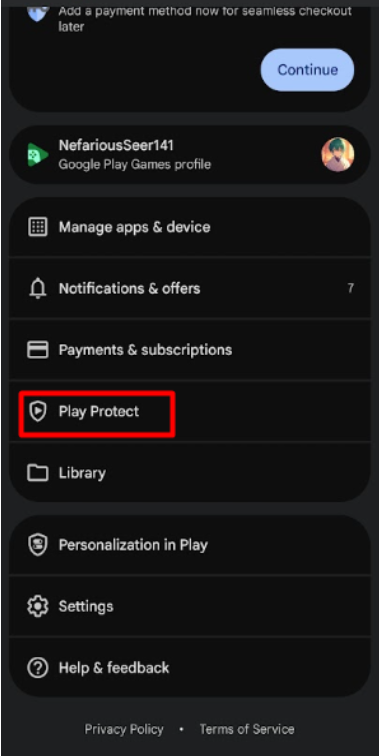
- Tap your Profile icon.
- Select Play Protect.
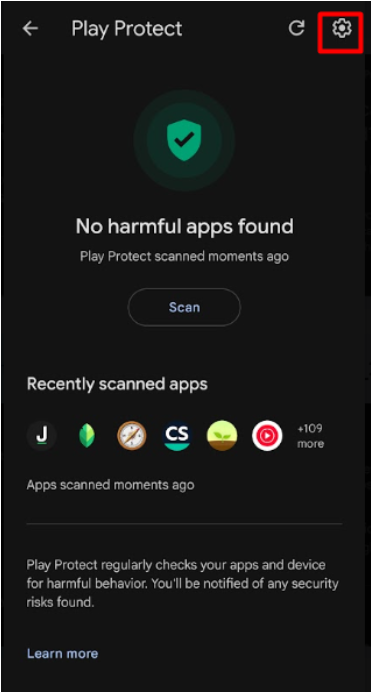
- Tap the Settings icon.
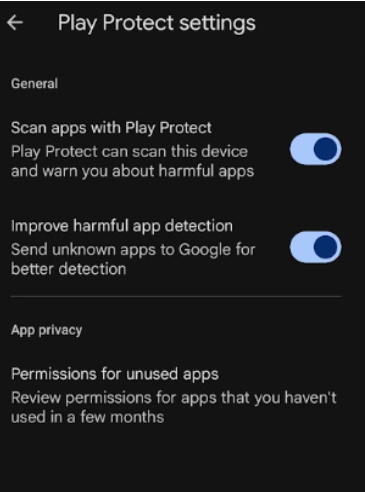
- Disable the available Play Protect options.
Download & Install the App
- Log in to your Sharp Archive account.
- From the Home page, select + Add More Channels.
- Select Text.
- Select the SMS icon. The SMS Onboarding modal will appear.
- Use the Download link provided in the modal to download the Sharp Archive – SMS app.
- Then install the app on your Android device.
- If your device restricts the installation because the app is not available on the Play Store, follow the device instructions to allow installation from the required source. If Google Drive applies restriction, click on the appeared Settings option and enable the toggle button – Allow from this source.
- If you still cannot install but have downloaded the file, please search in the Downloads section of Files / File Manager of your Android device. Then try installing the app again.
- Complete the app installation process.
Get an Invitation Code
From the previously displayed SMS Onboarding modal:
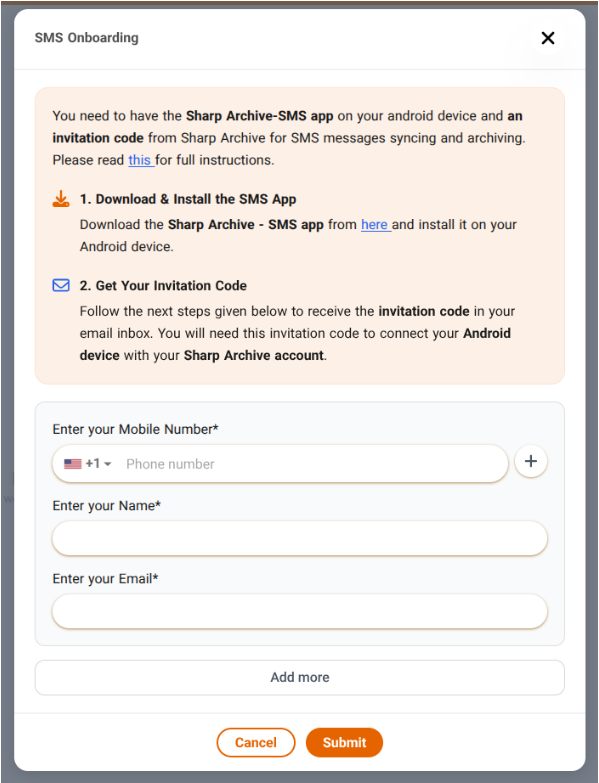
- Enter your Mobile Number.
- Enter your Name.
- Enter your Email.
- Select Submit.
- An Invitation Code will be sent to your email address.
Log In to the SMS App
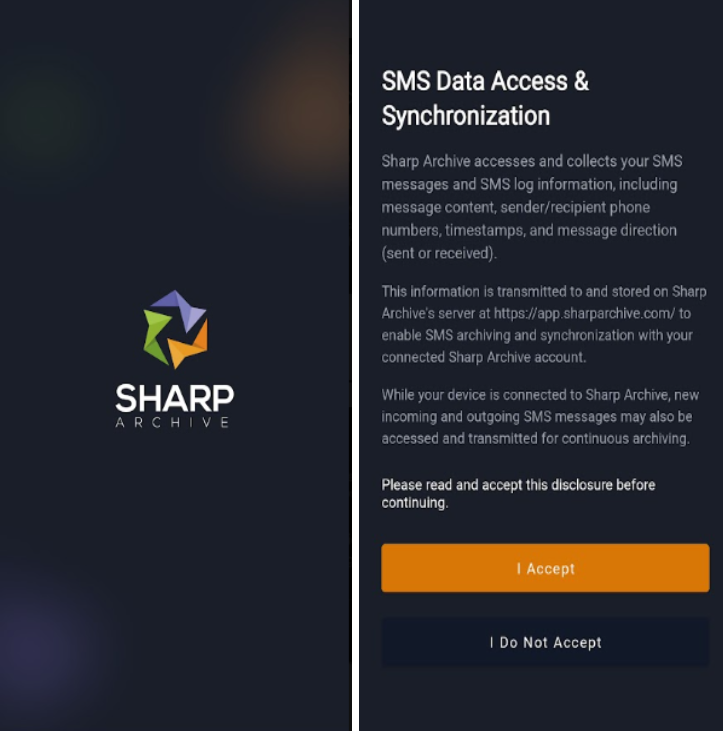
Open the Sharp Archive – SMS app and enter:
- Mobile Number: Your mobile number
- Invitation Code: The code received by email
- Allow the permissions the app asks for and log in.
Connect Mobile Number
After connecting:
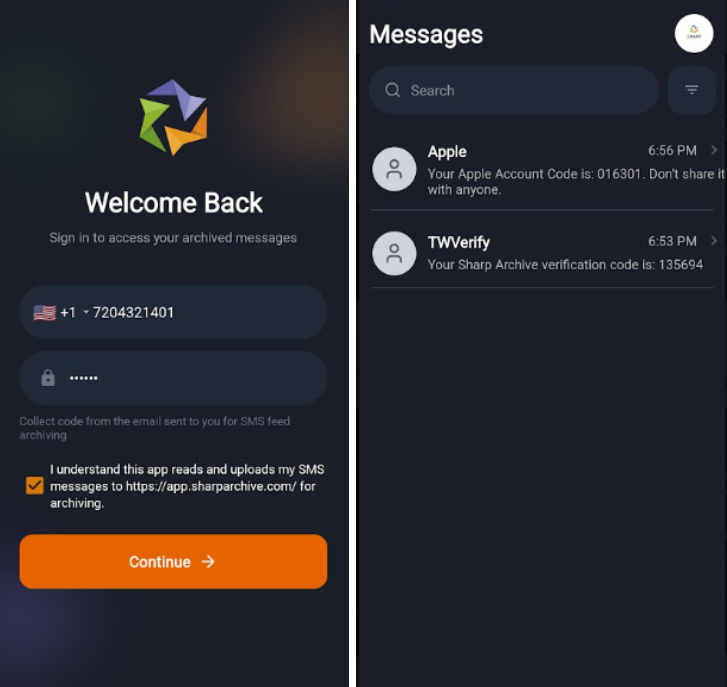
- Recent SMS messages, including messages from up to the last 15 days, will be fetched from all SIMs on the device.
- The messages will be uploaded to your Sharp Archive account.
- All incoming and outgoing SMS messages will continue to be archived after connection.
Verify Archiving
Send and receive SMS messages and verify that they:
- Appear in the Feed
- Are archived on the Archive page
Disconnect
To stop uploading SMS messages to Sharp Archive:
- Select Log Out from the SMS app.
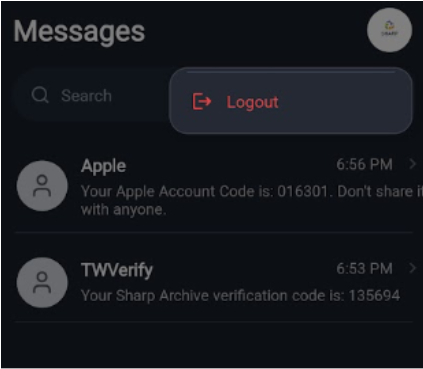
Or, go to Settings → Services in Sharp Archive and disconnect the connected SMS account.