
 How can we help you today?
Sharp Archive lets you connect your iMessage account so your messages can be automatically synced and archived.
Important: Sharp Archive will not fetch historical iMessage messages from before the connection. Only messages sent or received after connecting iMessage to Sharp Archive will be synchronized and archived.
Watch the video guide for step-by-step instructions
Prerequisite
Before connecting iMessage to Sharp Archive, make sure the following settings are enabled on your Apple device (iPhone, iPad, or Mac):
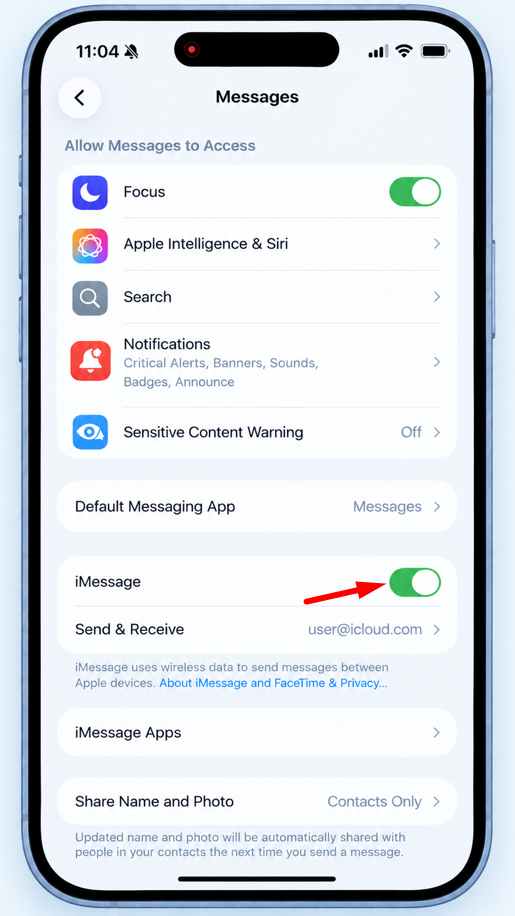
- Go to Settings and select Messages.
- Make sure iMessage is enabled.
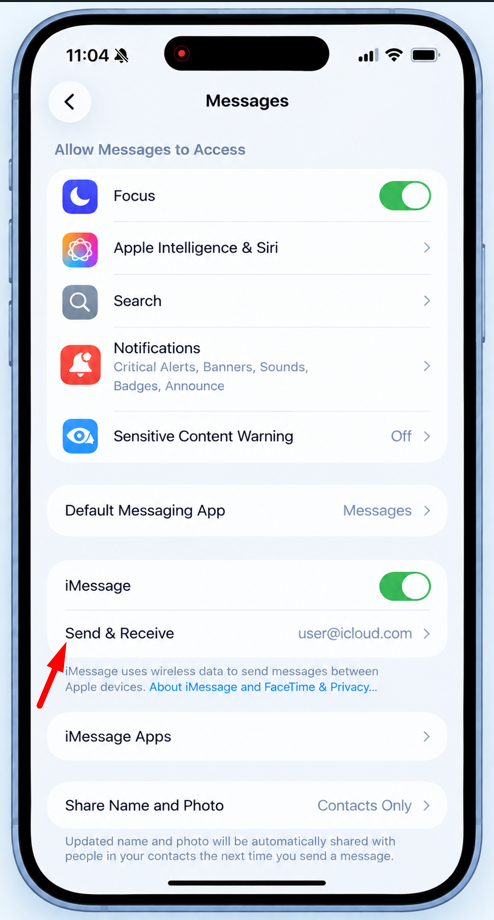
- Select Send & Receive.
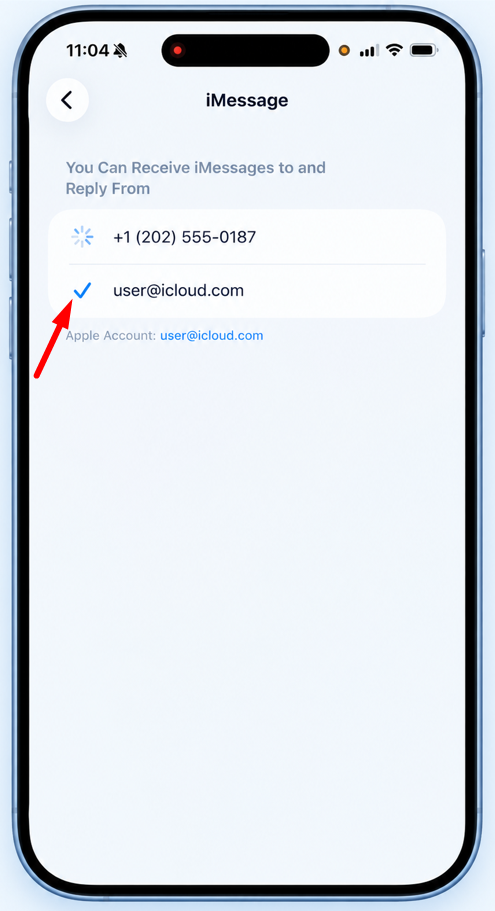
- Make sure your iCloud account is selected and enabled.
- Only messages sent or received after the iMessage connection is established will be archived. Historical messages will not be fetched.
- You can reset your settings if something does not work as described.
Connect iMessage
- Log in to your Sharp Archive account and go to the Home page.
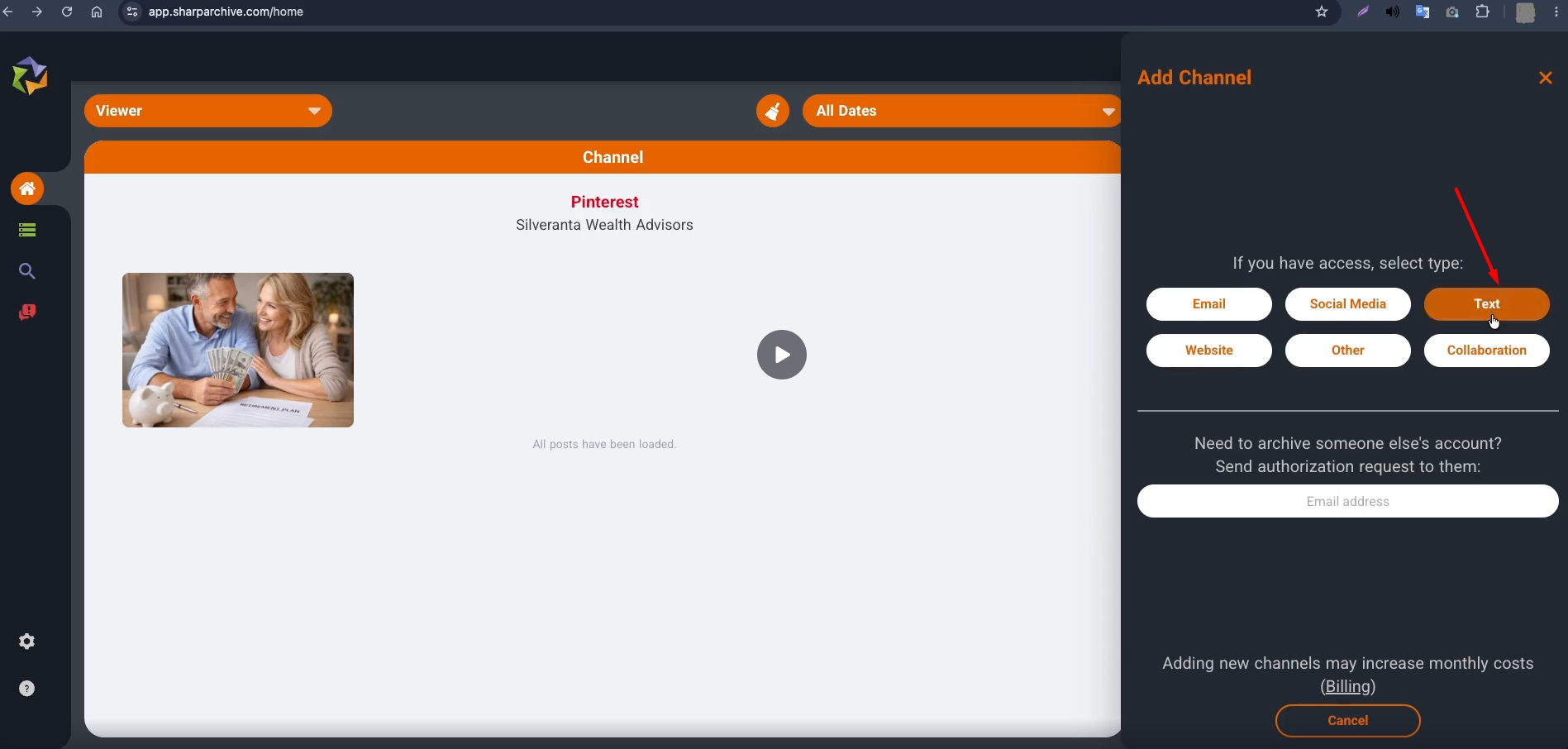
- Select + Add More Channels.
- Select Text.
- Select the iMessage icon.
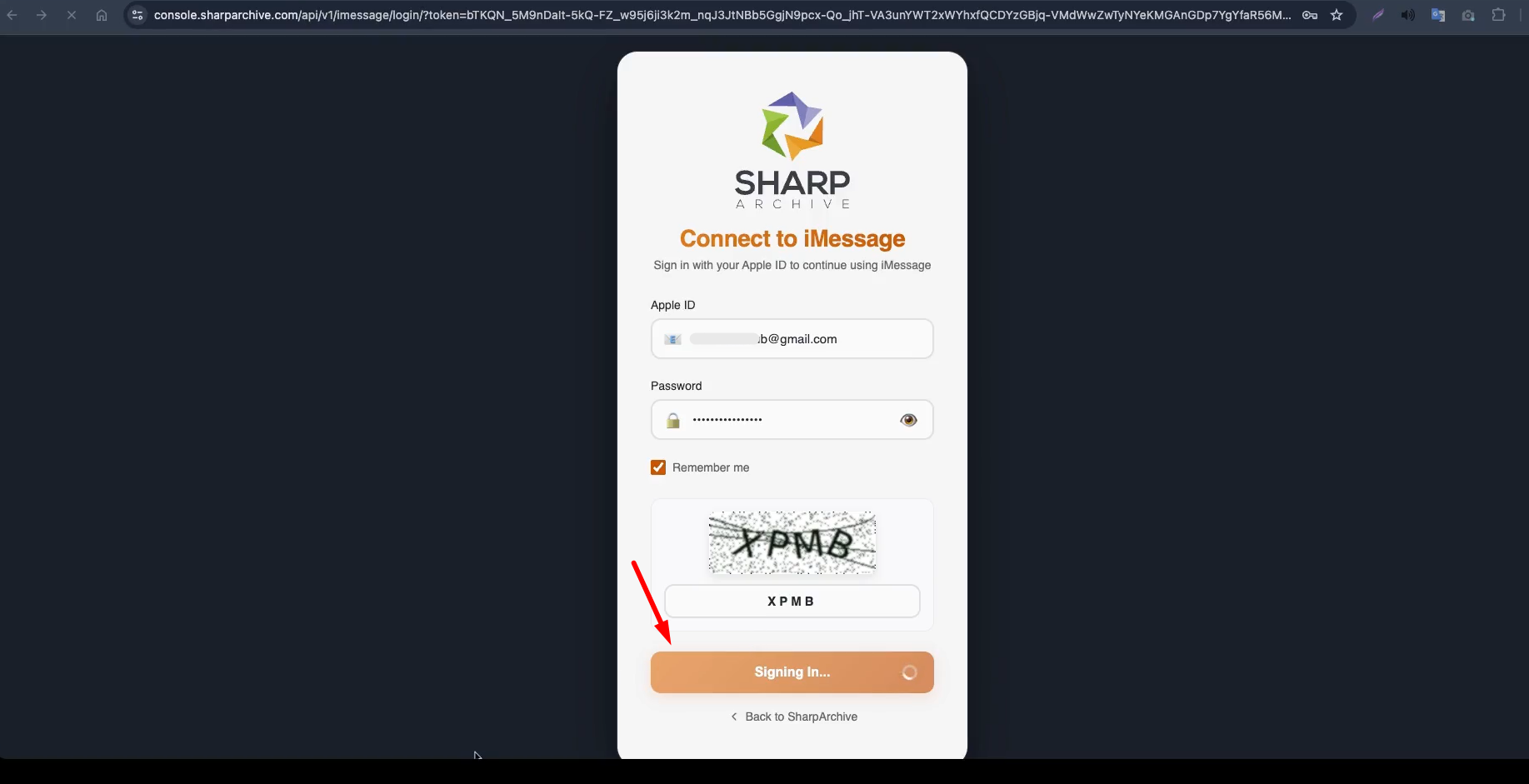
- Enter your Apple ID and password.
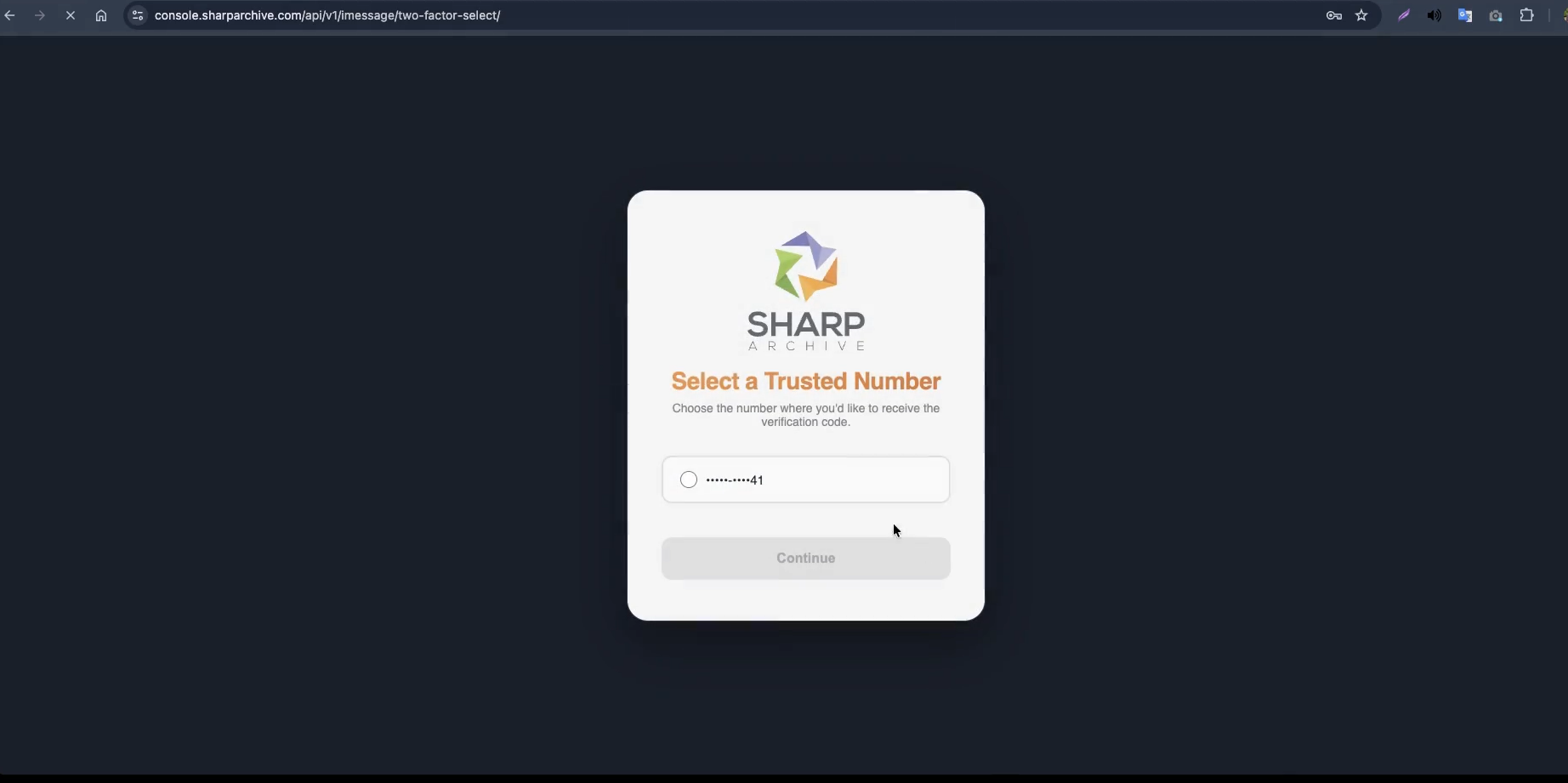
- Complete two-factor authentication when prompted.
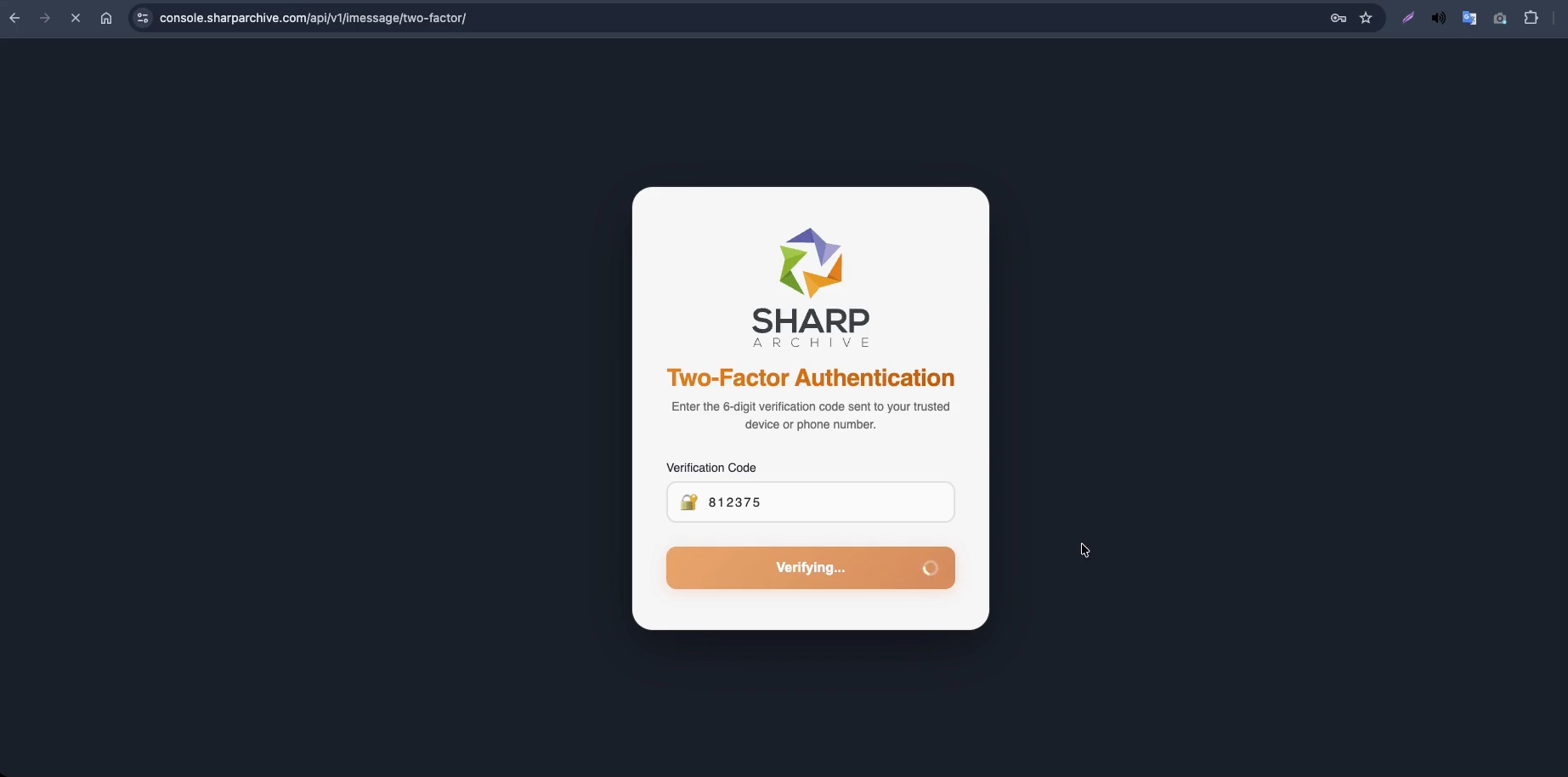
- Wait a few moments while Sharp Archive establishes the connection.
- Once the connection is successful, your iMessage channel is ready for synchronization.
Sync & Archive Messages
Once iMessage is connected, Sharp Archive will automatically archive new messages received or sent after the connection is established, including:
- Incoming messages
- Outgoing messages
- One-on-one conversations
- Group conversations
- Images
- Videos
- Files
View Archived Messages
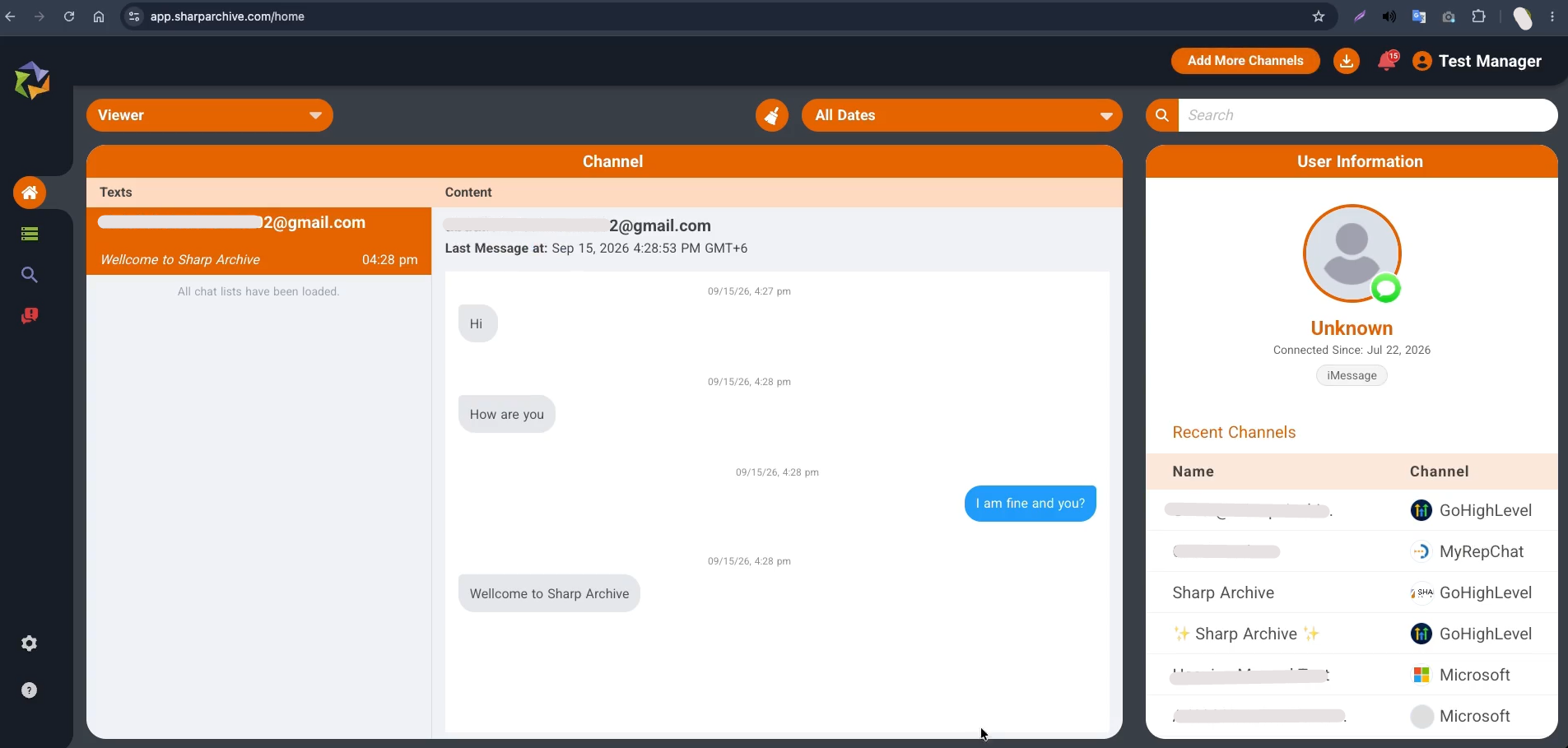
- From the Home page, go to the Archive page.
- Select the iMessage channel.
- Search or browse your archived conversations.
- Select a conversation to view the archived messages and supported media.
Disconnect iMessage
- Select Settings from the left sidebar and go to the Services page.
- Locate the connected iMessage account.
- Click the Edit icon and select Disconnect.
- Provide a reason for disconnecting.
- Select Disconnect to confirm.
Note: Once disconnected, new iMessage messages will no longer be synced or archived in Sharp Archive.