 How can we help you today?
Learn how to add, manage, update, and remove payment methods and billing details for your Sharp Archive account.
Important: Sharp Archive only charges the designated Default payment method. When you add a new payment method, be sure to set it as default if you want future charges billed to it.
Access Billing Settings
- Log in to your Sharp Archive account.
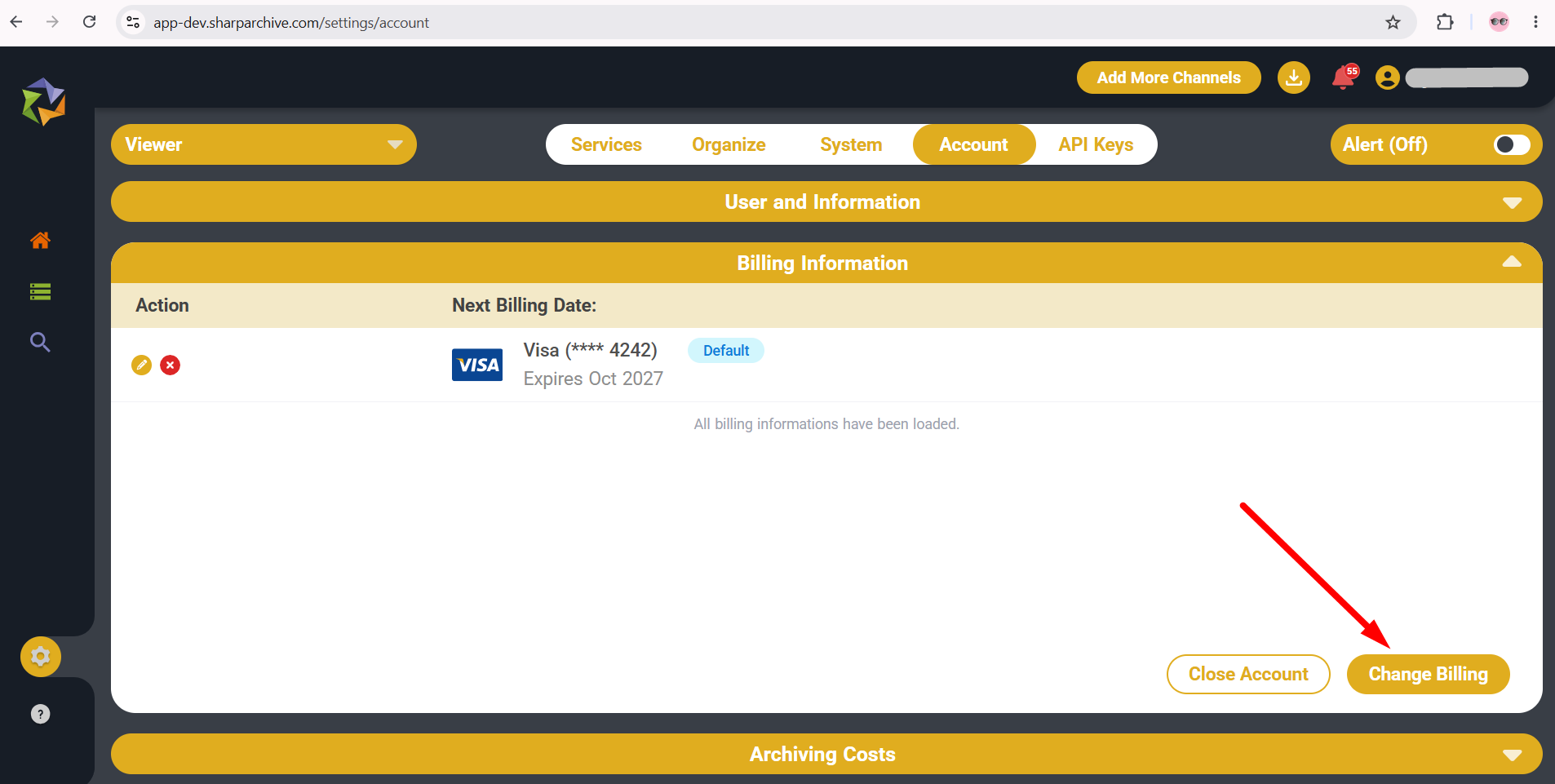
- Navigate to Settings → Account → select Change Billing.
Add Payment Method
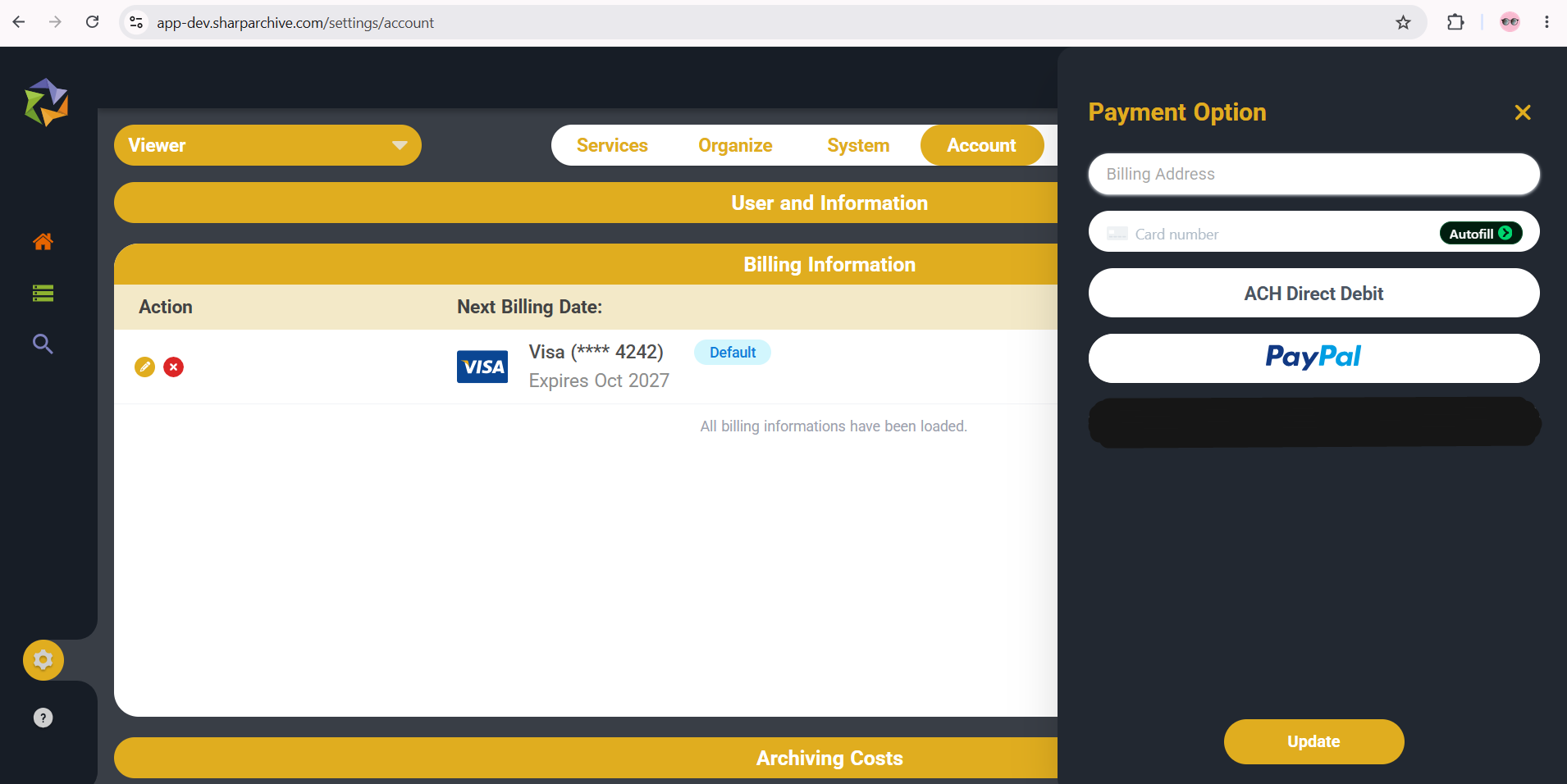
- The Payment Option modal will appear on your screen.
- Enter your new card or payment method details (such as Credit/Debit Card, ACH Direct Debit, or PayPal).
- Click Update to save the new payment information.
Verify Added Payment Method
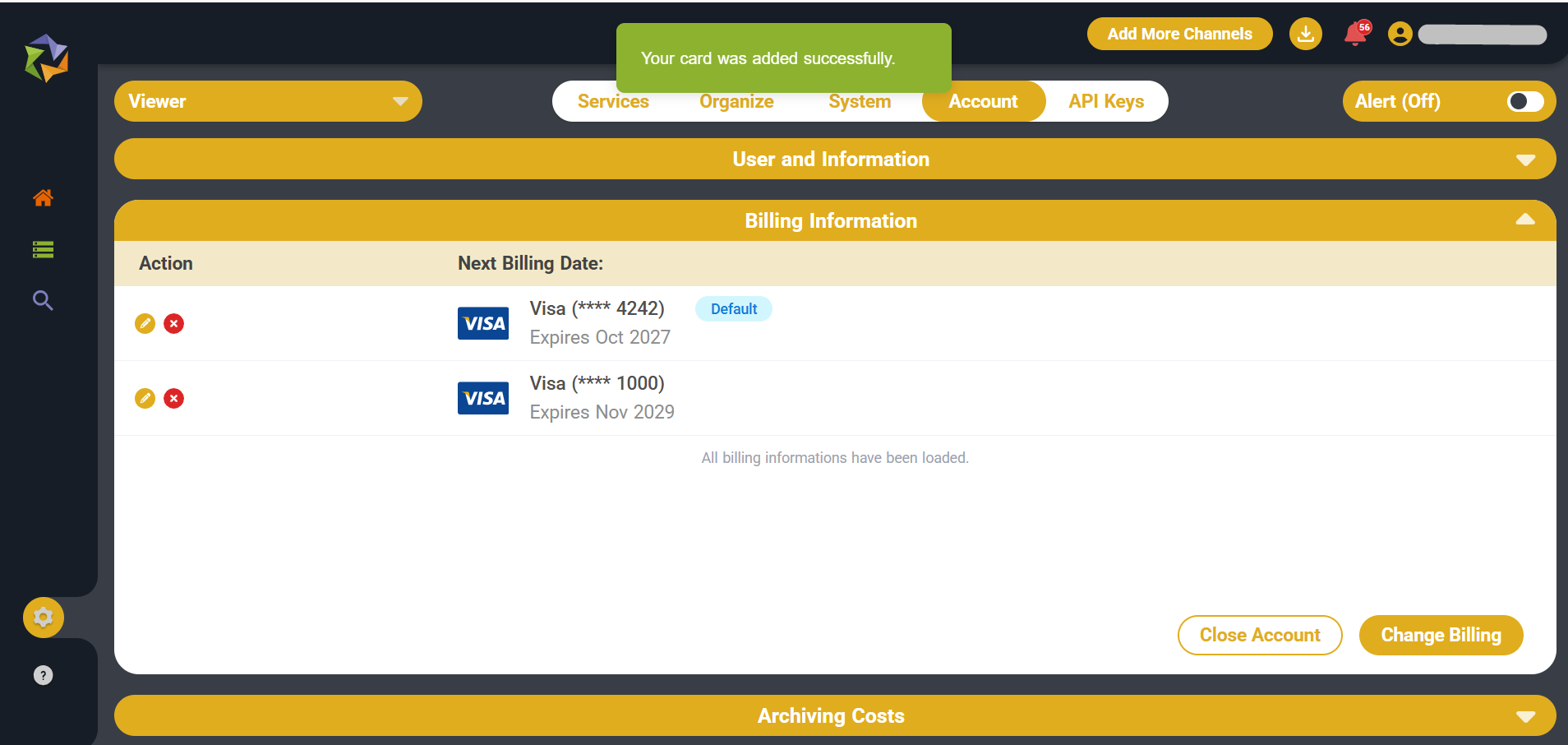
- A confirmation alert Your card was added successfully will be displayed.
- Your new card/payment method is now listed under the Billing Information section.
Edit Card Settings
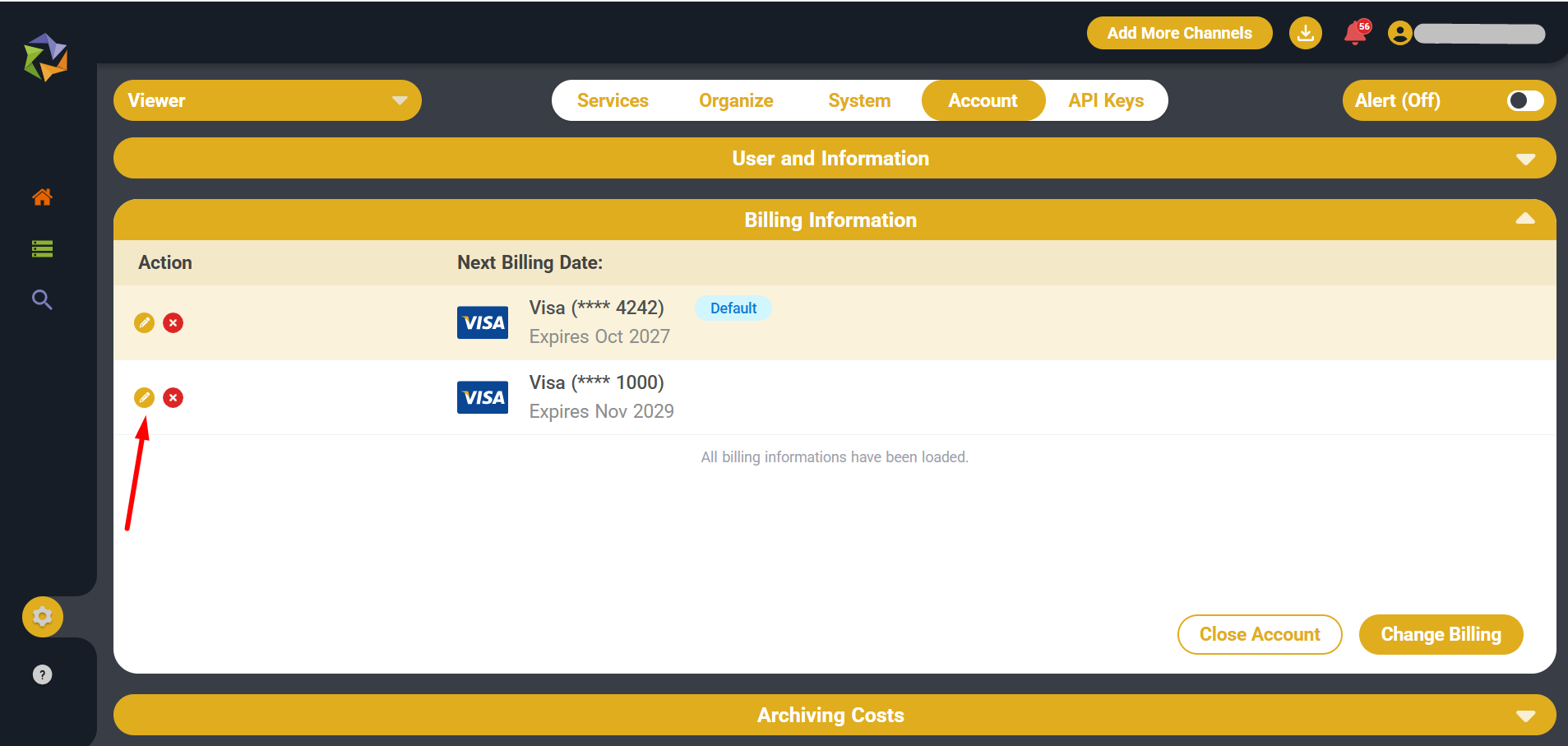
- Locate the newly added card under Billing Information.
- Click the Edit icon (pencil/orange dot) next to the card.
Set as Default Payment Method
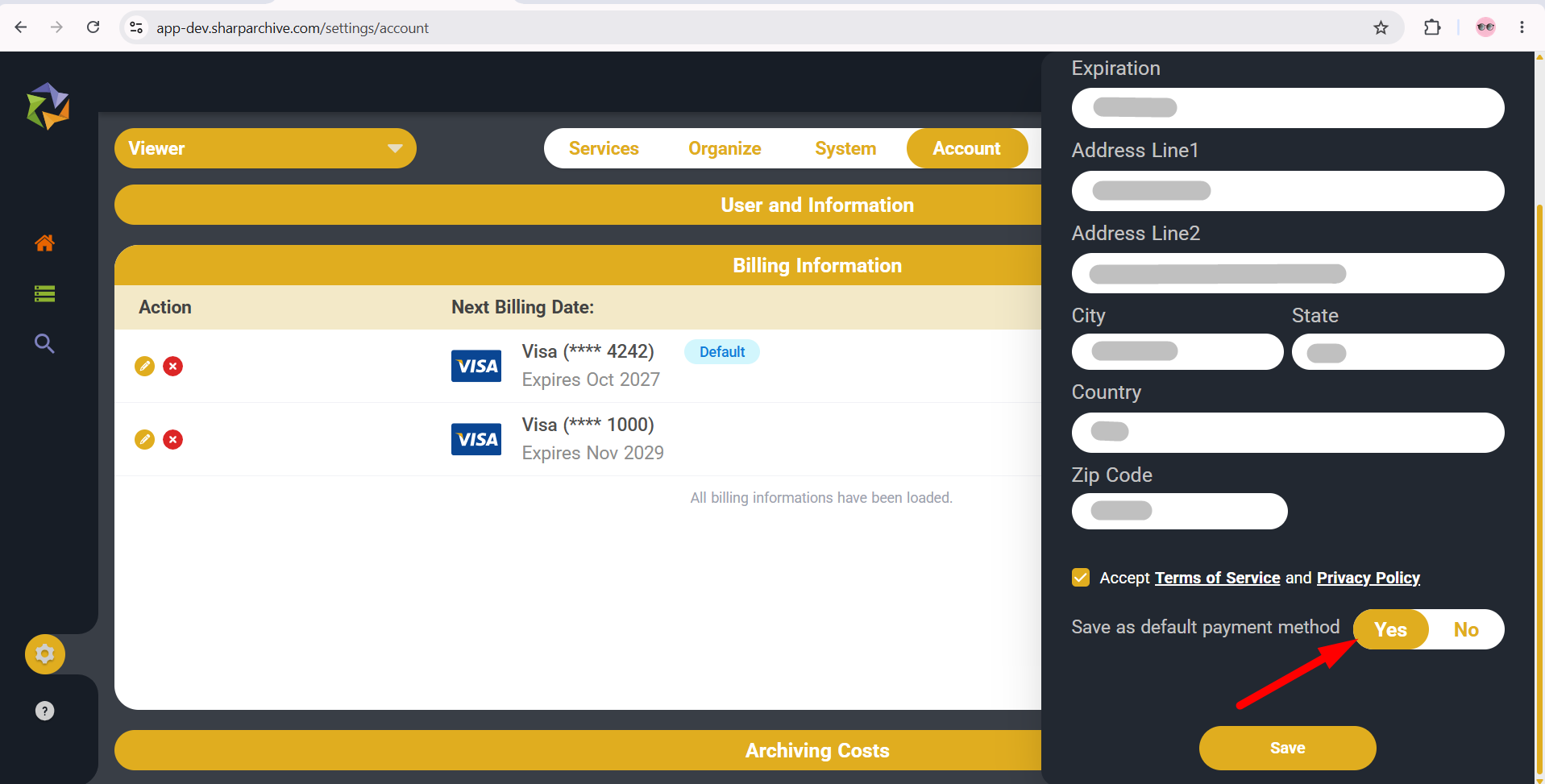
- In the card edit modal, locate the Save as default payment method option.
- Select Yes.
- Click Save to apply your changes.
Confirm Default Status
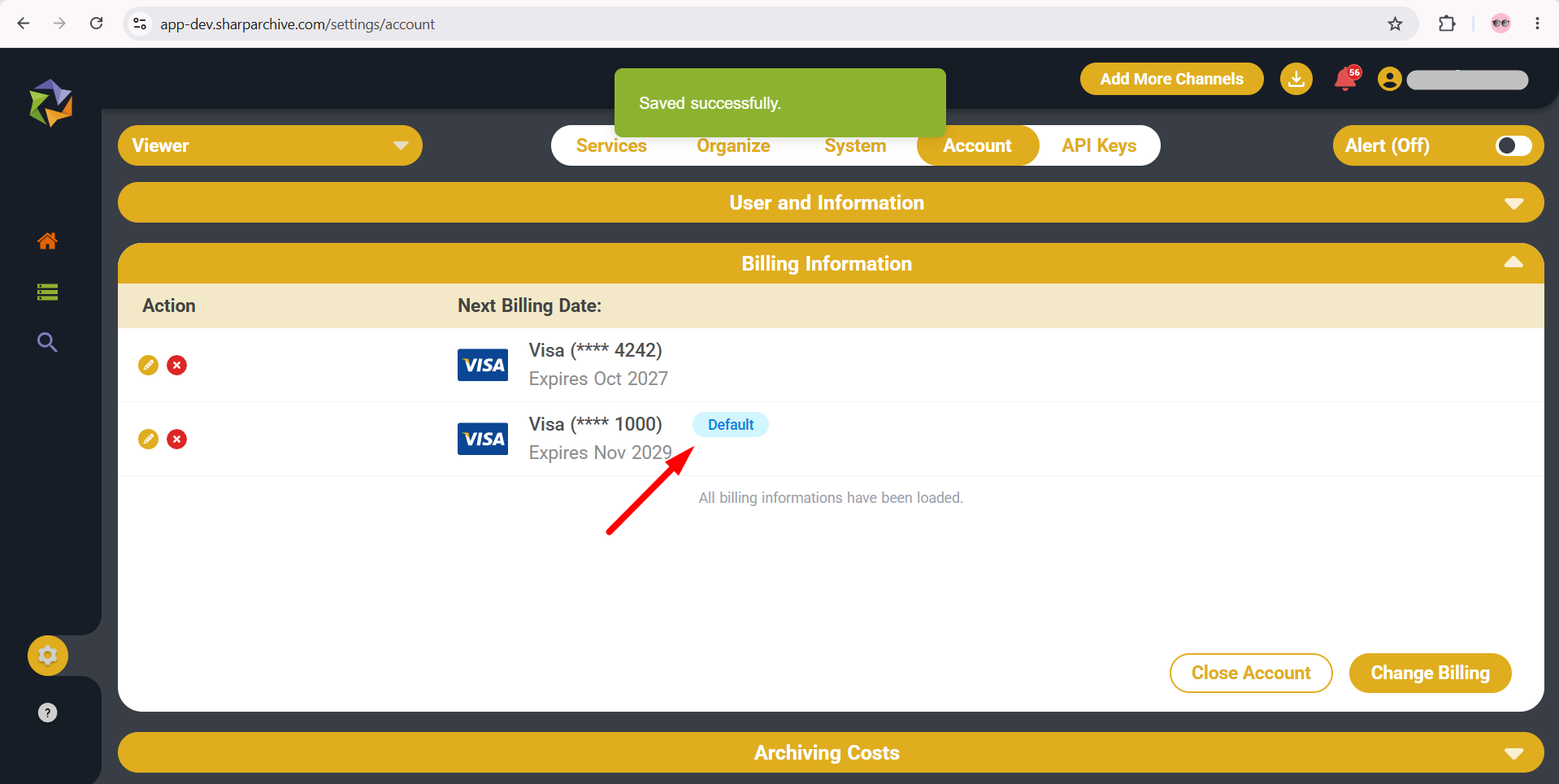
- A success confirmation banner Saved successfully will appear.
- The newly added card will now show the Default badge.
- Sharp Archive will automatically charge the newly set default card for all subsequent billing cycles.
Remove or Manage Other Cards
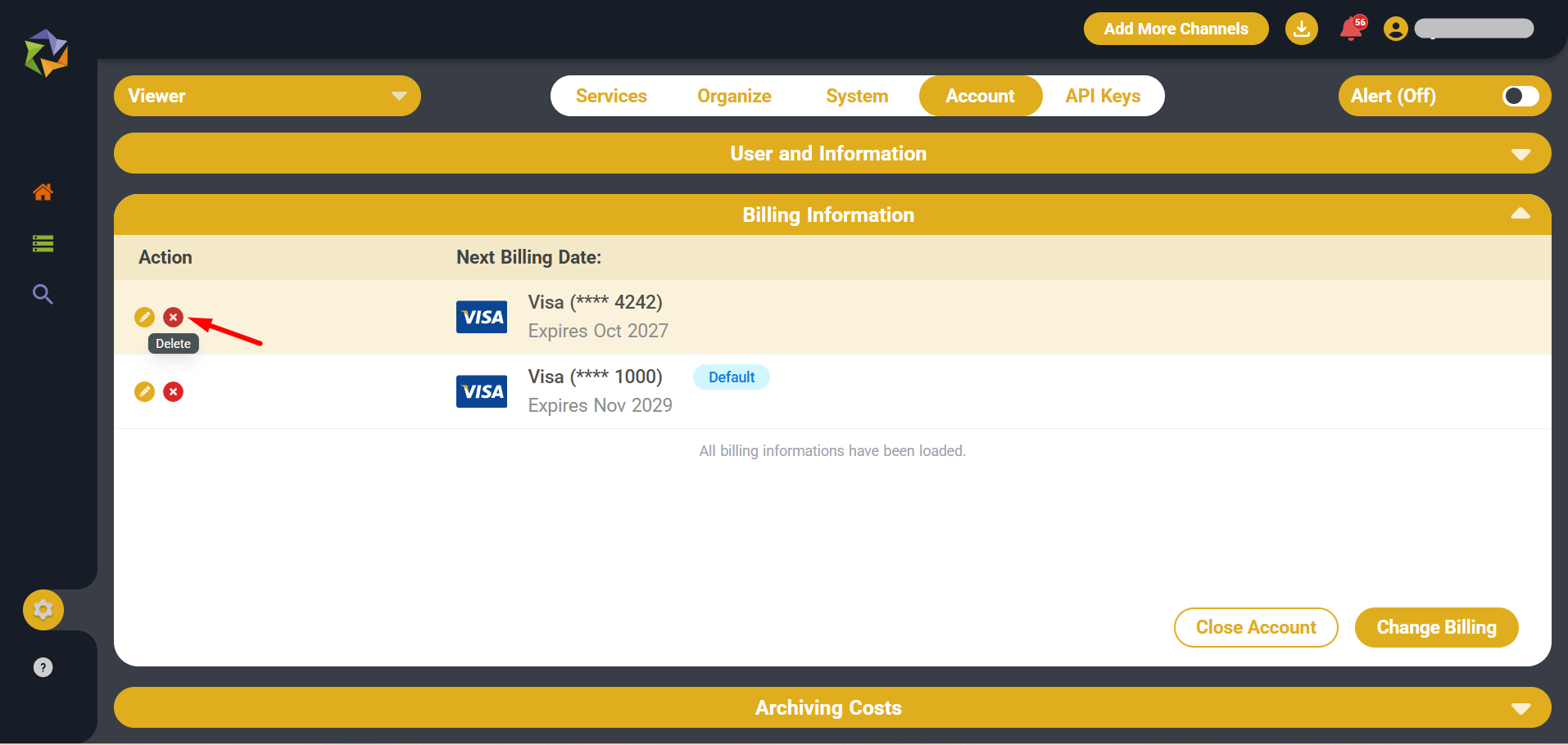
- You can remove any old or secondary card by clicking its Delete / Remove icon, provided it is not the active default card.
- You can add multiple payment methods at any time by following the same process.