
 How can we help you today?
If you encounter an error message while trying to connect or reconnect your X (formerly Twitter) account to Sharp Archive, follow the troubleshooting steps below to revoke previous app permissions and re-establish the connection.
Sign in to X.com
- Open your web browser and sign in to the affected account at X.com.
Access Settings and Privacy
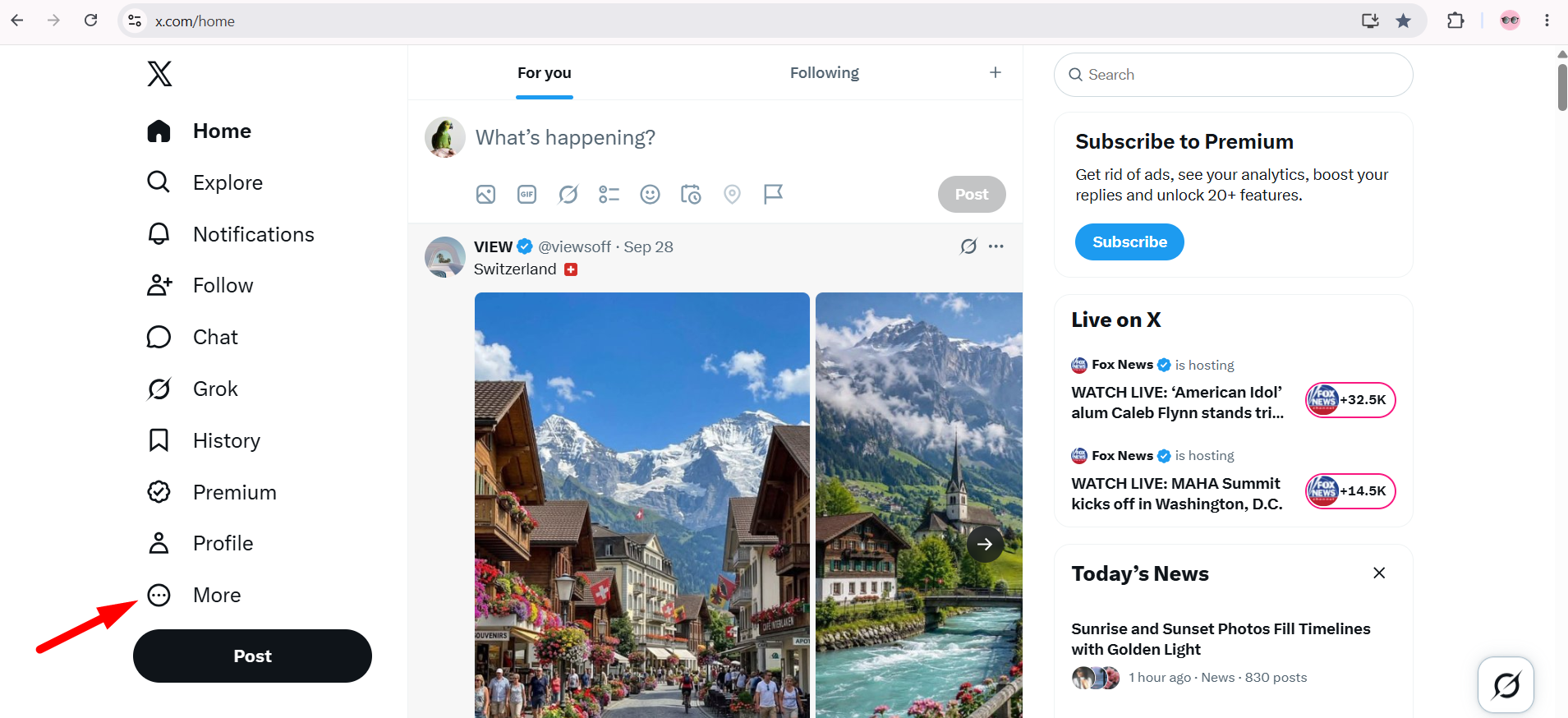
- From the left-hand navigation menu, select More.
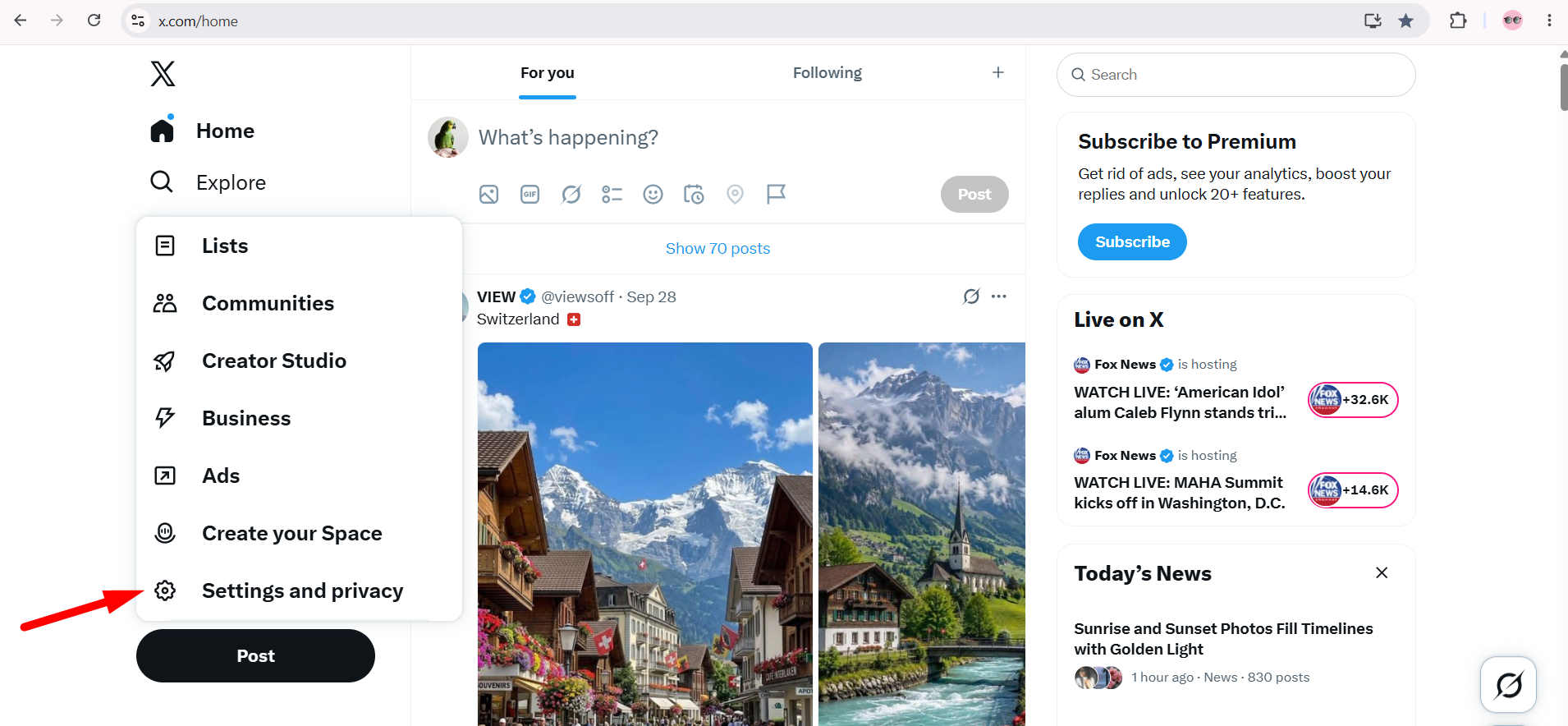
- Select Settings and privacy.
Go to Security and Account Access
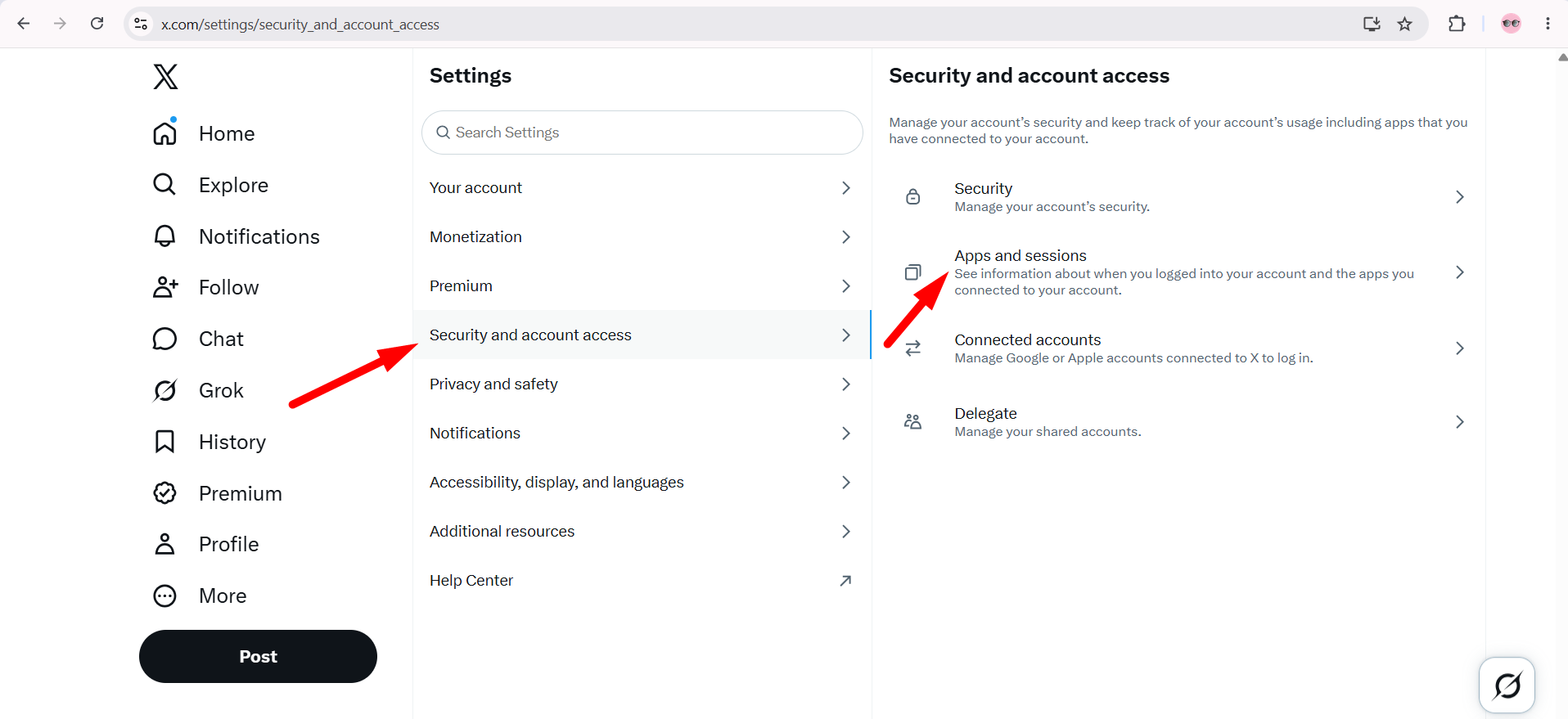
- In the Settings menu, select Security and account access.
- Select Apps and sessions.
Open Connected Apps
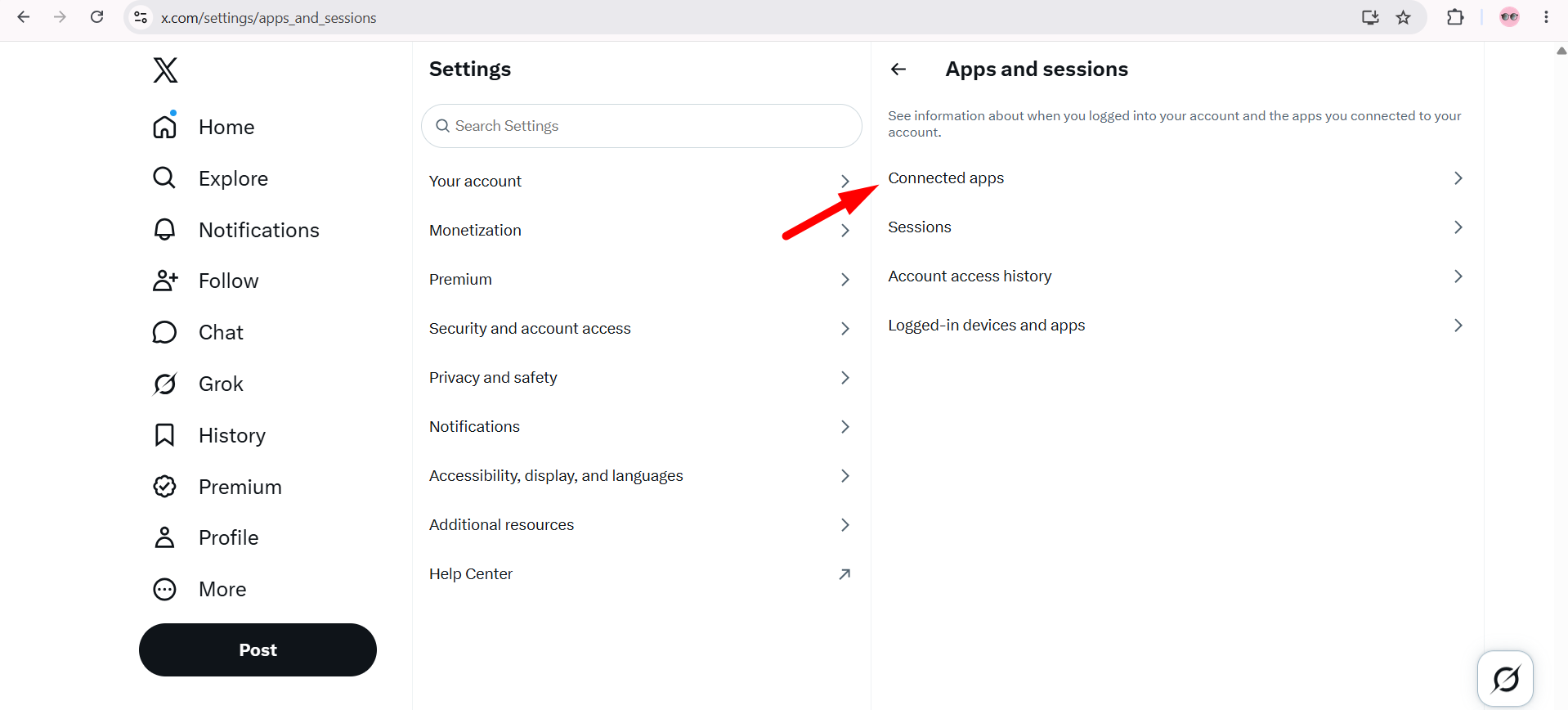
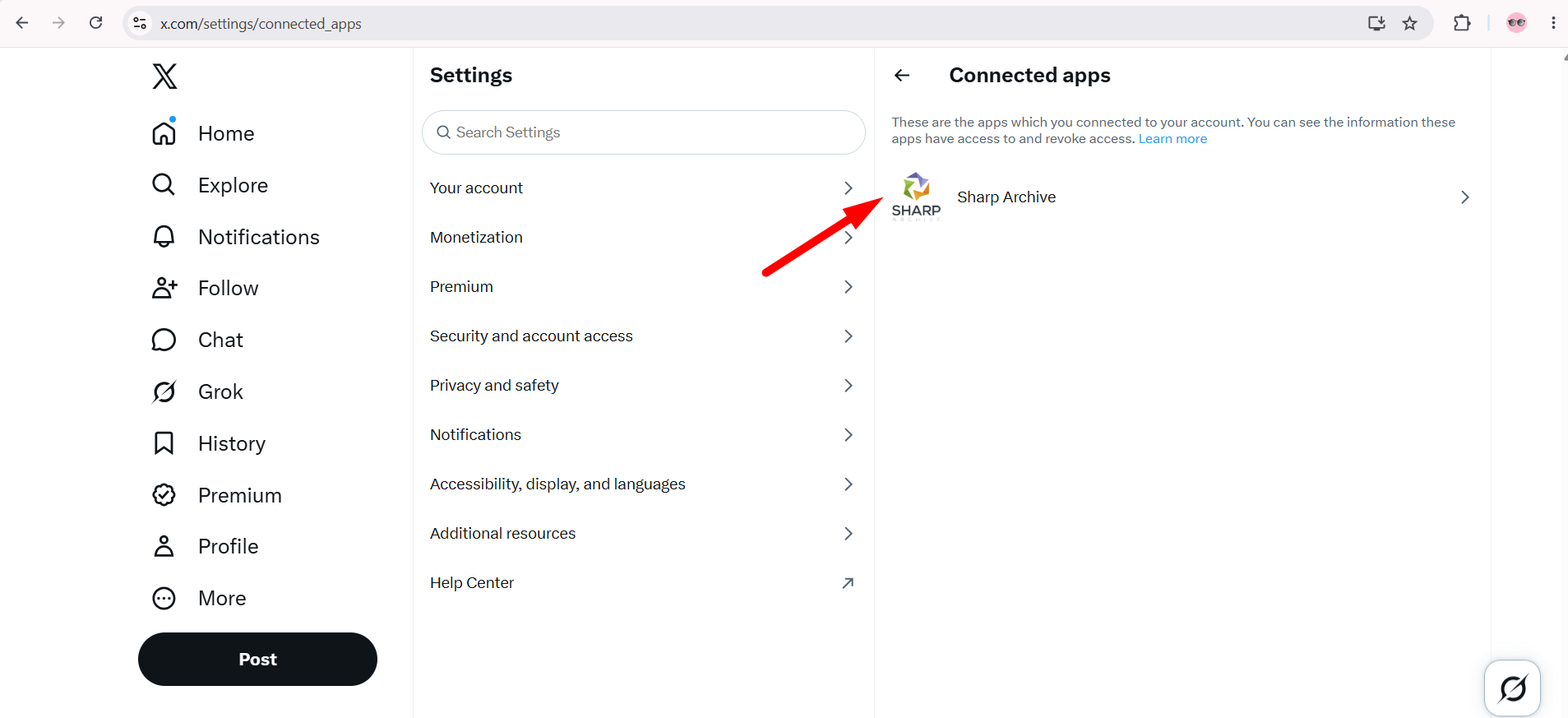
- Select Connected apps to view the list of authorized applications.
Select Sharp Archive
- Locate and click on Sharp Archive from the list of connected apps.
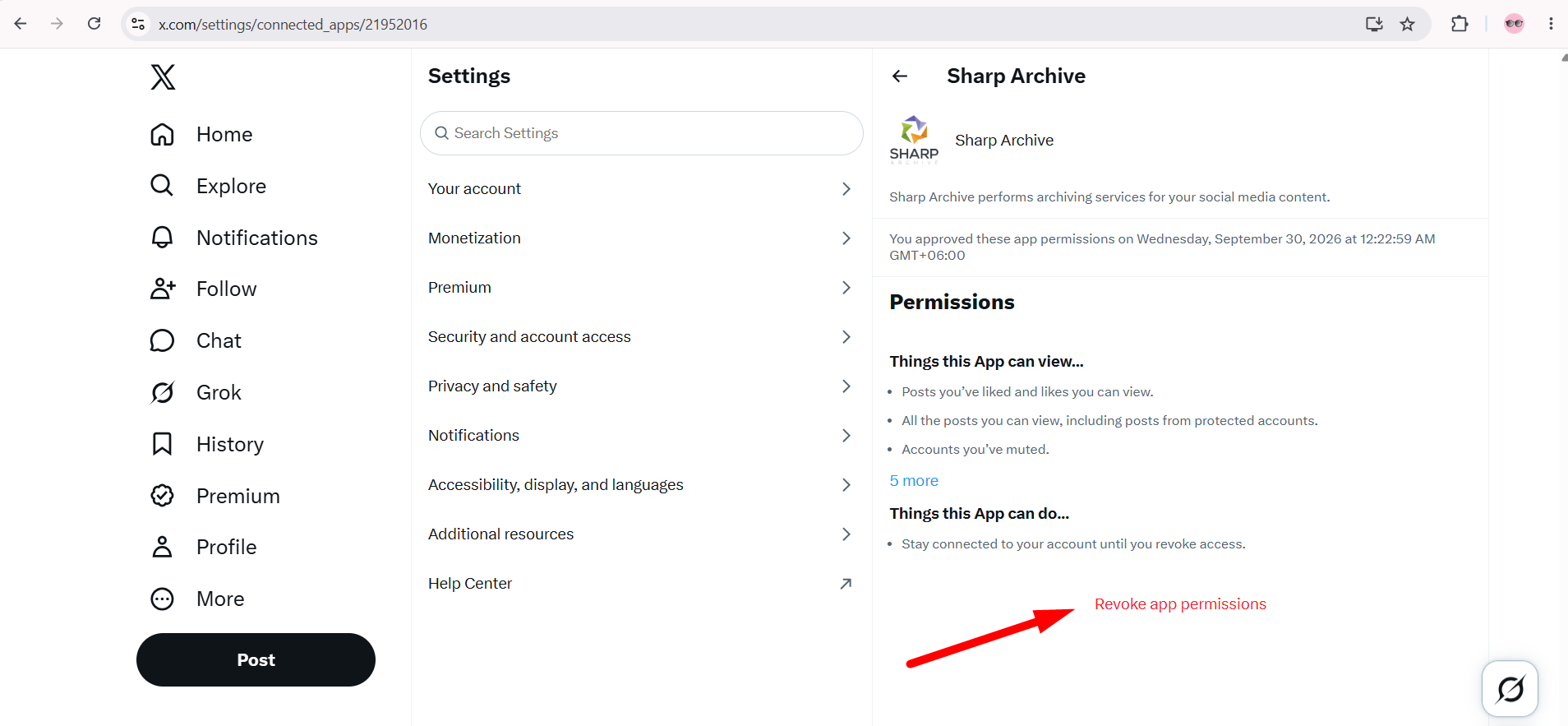
Revoke App Permissions
- Click Revoke app permissions.
- If multiple Revoke app permissions options appear, click all of them to completely clear cached authorizations.
Reconnect Account in Sharp Archive
- Open an incognito / private window in your browser (or try a clean browser session such as Safari, Chrome, or Firefox).
- Log in to your Sharp Archive account.
- Navigate to the Home page and click + Add More Channels.
- Select X / Twitter and complete the authorization prompt to reconnect your channel.